Switching from Excel to CRM might seem like a small step, but it’s a giant leap for your business growth. Imagine turning messy spreadsheets into smart, automated customer insights—this is where real efficiency begins.




Why Moving from Excel to CRM Is a Game-Changer

For years, businesses have relied on Excel to manage customer data, sales pipelines, and follow-ups. While it’s a powerful tool for calculations and basic tracking, it quickly becomes a bottleneck as your business scales. The shift from Excel to CRM isn’t just about upgrading software—it’s about transforming how you interact with customers, forecast sales, and grow strategically.
Limited Collaboration in Excel
One of the biggest drawbacks of using Excel for customer management is the lack of real-time collaboration. When multiple team members need access to the same data, version control becomes a nightmare. You end up with multiple files—’Final_v2.xlsx’, ‘Updated_Final.xlsx’, ‘Really_Final.xlsx’—and no one knows which one is accurate.
- Data silos form when departments use separate spreadsheets.
- Team members can’t see live updates, leading to duplicated efforts.
- Email attachments create confusion and security risks.
In contrast, a CRM system centralizes all customer data in one secure, cloud-based location. Everyone on the sales, marketing, and support teams sees the same information at the same time. This transparency improves coordination and reduces errors.
Poor Data Accuracy and Integrity
Excel is prone to human error. A misplaced decimal, a deleted row, or an incorrect formula can distort your entire dataset. According to a BBC report, 88% of spreadsheets contain errors, and 50% of those errors are material enough to impact business decisions.
“Spreadsheets are great for what they were designed for—calculations. But when used as databases, they become ticking time bombs.” — John Walkenbach, Spreadsheet Expert
CRMs enforce data validation rules, mandatory fields, and structured inputs. This ensures that every lead, contact, or deal is entered consistently, reducing the risk of costly mistakes. When you make the Excel to CRM transition, you’re not just changing tools—you’re improving data quality.
Key Challenges of Using Excel for Customer Management
While Excel is versatile, it wasn’t built to handle complex customer relationship workflows. As your business grows, the limitations become more apparent and more damaging.
No Automation Capabilities
One of the most time-consuming aspects of using Excel is the manual work involved. Need to send follow-up emails? You do it one by one. Want to track when a lead was last contacted? You have to manually update dates. There’s no automation for tasks, reminders, or workflows.
- Sales reps waste hours on data entry instead of selling.
- Follow-ups are often missed due to human oversight.
- Marketing campaigns can’t be triggered based on customer behavior.
A CRM, on the other hand, automates repetitive tasks. For example, after a lead fills out a form on your website, the CRM can automatically assign them to a sales rep, send a welcome email, and schedule a follow-up task—all without human intervention.
Lack of Scalability
Excel files grow heavy and slow as they accumulate data. Once you hit tens of thousands of rows, performance degrades. Opening, saving, or filtering data can take minutes—or crash the program entirely.
Excel to CRM – Excel to CRM menjadi aspek penting yang dibahas di sini.
Moreover, Excel doesn’t scale well with team size. As more people need access, sharing becomes cumbersome. CRMs are built for scalability. Whether you have 10 users or 10,000, cloud-based systems like Salesforce or Zoho CRM handle large datasets and high user loads effortlessly.
Excel to CRM: The 7-Step Migration Process
Migrating from Excel to CRM doesn’t have to be overwhelming. With a structured approach, you can ensure a smooth transition with minimal downtime and data loss.
Step 1: Audit and Clean Your Excel Data
Before importing anything into a CRM, you must clean your existing Excel data. This includes removing duplicates, correcting formatting inconsistencies, and filling in missing information.
- Use Excel’s ‘Remove Duplicates’ feature under the Data tab.
- Standardize phone numbers, email addresses, and company names.
- Delete outdated or irrelevant records to reduce clutter.
A clean dataset ensures higher accuracy in your CRM and prevents errors during import. Tools like OpenRefine or Trifacta can help automate this process for large datasets.
Step 2: Choose the Right CRM Platform
Not all CRMs are created equal. The best choice depends on your business size, industry, budget, and specific needs. Here are some top options:
- Salesforce: Ideal for large enterprises needing deep customization.
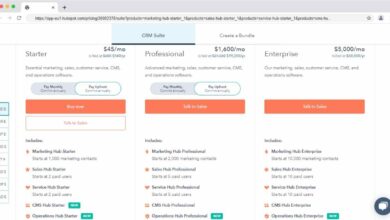
- HubSpot CRM: Great for small to mid-sized businesses with strong marketing integration.
- Zoho CRM: Affordable and feature-rich for growing teams.
- Pipedrive: Sales-focused with an intuitive pipeline view.
Most platforms offer free trials, so test a few before committing. Look for ease of use, integration capabilities, and mobile support.
Step 3: Map Your Excel Fields to CRM Fields
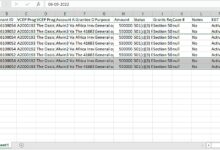
This step is crucial for a successful Excel to CRM migration. You need to match each column in your spreadsheet to the corresponding field in your CRM.
For example:
- Excel Column ‘First Name’ → CRM Field ‘First Name’
- Excel Column ‘Company’ → CRM Field ‘Account Name’
- Excel Column ‘Deal Value’ → CRM Field ‘Opportunity Amount’
Some fields may not have a direct match. In such cases, create custom fields in your CRM or decide whether the data is necessary. Proper mapping ensures that your data lands in the right place and remains usable.
Step 4: Export Excel Data in the Right Format
Most CRMs accept CSV (Comma-Separated Values) files for import. Save your cleaned Excel file as a CSV to ensure compatibility.
Excel to CRM – Excel to CRM menjadi aspek penting yang dibahas di sini.
Before exporting:
- Ensure column headers are clear and match your CRM field names.
- Avoid special characters or merged cells.
- Include only the data you need—don’t import test records or placeholder data.
Some CRMs provide templates to guide your CSV structure. Use them to avoid formatting issues during upload.
Step 5: Import Data into Your CRM
Once your CSV is ready, log into your CRM and navigate to the import tool. This is usually found under ‘Settings’ or ‘Data Management’.
During import:
- Select the record type (e.g., Contacts, Leads, Accounts).
- Upload your CSV file.
- Map each column to the correct CRM field (you can often auto-map based on header names).
- Run a test import with a small batch of data first.
After the test, verify that the data appears correctly. Check for missing fields, incorrect dates, or formatting errors. Once satisfied, proceed with the full import.
Step 6: Validate and Verify Imported Data
Don’t assume the import was perfect. Always validate the data after it’s in the CRM.
- Spot-check random records to ensure accuracy.
- Run reports to confirm total record counts match your original spreadsheet.
- Look for duplicates or incomplete entries.
If issues are found, you may need to clean the data further and re-import. Some CRMs offer duplicate detection tools to help clean up post-import.
Step 7: Train Your Team and Establish New Workflows
The final step in the Excel to CRM journey is adoption. No matter how good your CRM is, it won’t help if your team doesn’t use it.
- Conduct hands-on training sessions for all users.
- Create simple guides or video tutorials for common tasks.
- Assign a CRM champion to answer questions and provide support.
Update your internal processes to reflect the new system. For example, replace spreadsheet-based sales reports with CRM-generated dashboards. This ensures long-term success and ROI from your CRM investment.
Top CRM Features That Excel Can’t Match
Once you’ve completed the Excel to CRM transition, you’ll quickly realize how much more powerful a dedicated CRM is. Here are key features that Excel simply can’t replicate.
Excel to CRM – Excel to CRM menjadi aspek penting yang dibahas di sini.
Automated Workflows and Task Management
CRMs allow you to set up automated workflows that trigger actions based on user behavior or time-based events.
- Send a follow-up email 24 hours after a lead downloads a whitepaper.
- Assign a new lead to a sales rep based on territory or product interest.
- Create a task for a manager to review a deal when it reaches a certain stage.
These automations save time, reduce human error, and ensure consistent customer engagement.
Real-Time Analytics and Dashboards
While Excel can create charts and pivot tables, CRMs offer dynamic, real-time dashboards that update automatically.
- Track sales performance by rep, region, or product.
- Monitor lead conversion rates across marketing channels.
- Forecast revenue with AI-powered predictions.
Managers can make data-driven decisions instantly, without waiting for someone to generate a weekly report in Excel.
Integration with Marketing and Support Tools
Modern CRMs integrate seamlessly with email, social media, live chat, and support platforms.
- Synchronize emails and calendar events directly with contact records.
- Track customer interactions across Facebook, LinkedIn, or WhatsApp.
- Link support tickets to customer profiles for better service.
These integrations create a 360-degree view of the customer—something Excel can never provide.
Common Pitfalls to Avoid During Excel to CRM Migration
Even with the best intentions, many businesses stumble during the Excel to CRM process. Being aware of these pitfalls can help you avoid them.
Skipping Data Cleanup
Rushing to import dirty data leads to a messy CRM from day one. Take the time to clean, deduplicate, and standardize your data before migration. A clean start ensures better usability and reporting accuracy.
Over-Customizing Too Early
It’s tempting to customize every field and workflow immediately. But over-customization can make the system complex and hard to use. Start with core functionality, let your team adapt, and then add customizations based on real needs.
Ignoring User Adoption
The most advanced CRM fails if people don’t use it. Involve your team early, provide training, and gather feedback. Make the CRM part of daily routines, not an extra chore.
Excel to CRM – Excel to CRM menjadi aspek penting yang dibahas di sini.
How CRM Enhances Sales and Marketing Alignment
One of the most powerful benefits of moving from Excel to CRM is improved alignment between sales and marketing teams.
Shared Visibility into Lead Quality
In Excel, marketing might hand off leads via email, with no way to track what happens next. In a CRM, both teams can see the entire journey of a lead—from first click to closed deal.
- Marketing can see which campaigns generate the most qualified leads.
- Sales can provide feedback on lead quality, helping refine targeting.
- Both teams can agree on lead scoring and qualification criteria.
This transparency builds trust and encourages collaboration.
Automated Lead Nurturing and Scoring
CRMs enable automated lead nurturing sequences based on behavior. For example:
- A lead who visits your pricing page three times gets a higher score.
- A contact who opens five consecutive emails is marked as ‘engaged’.
- Leads above a certain score are automatically routed to sales.
This level of intelligence is impossible to maintain manually in Excel.
Future-Proofing Your Business with CRM
The move from Excel to CRM isn’t just about solving today’s problems—it’s about preparing for tomorrow’s opportunities.
Leveraging AI and Predictive Analytics
Modern CRMs use artificial intelligence to predict customer behavior, recommend next steps, and even draft emails.
- Salesforce Einstein can predict which deals are most likely to close.
- HubSpot suggests the best time to email a contact based on past engagement.
- Zoho CRM offers AI-powered sales assistants to guide reps through calls.
These capabilities give businesses a competitive edge that spreadsheets can’t match.
Supporting Remote and Hybrid Teams
In today’s world, teams are often distributed. A cloud-based CRM ensures that everyone—whether in the office, at home, or on the road—has access to the same data and tools.
- Sales reps can update deals from their phones after a client meeting.
- Managers can monitor performance from anywhere.
- Customer service agents can resolve issues faster with full context.
This flexibility is essential for modern, agile businesses.
Excel to CRM – Excel to CRM menjadi aspek penting yang dibahas di sini.
What are the main benefits of moving from Excel to CRM?
The main benefits include improved data accuracy, real-time collaboration, automation of repetitive tasks, better sales forecasting, enhanced customer insights, and seamless integration with other business tools. A CRM centralizes customer information, making it easier to manage relationships and drive growth.
Can I import my Excel data into any CRM?
Yes, most CRMs support CSV imports, which means you can easily transfer data from Excel. However, it’s important to clean and format your data correctly before importing. Always check your CRM’s import guidelines and use a test import first to avoid errors.
Is CRM more secure than storing data in Excel files?
Yes, CRMs are generally more secure than Excel files. They offer role-based access control, data encryption, audit trails, and regular backups. In contrast, Excel files stored on local drives or shared via email are vulnerable to loss, theft, and unauthorized access.
How long does it take to migrate from Excel to CRM?
The migration timeline varies based on data size and complexity. For a small business with a clean dataset, it can take as little as a few days. Larger organizations with messy data may need several weeks for cleanup, testing, and training. Planning and preparation are key to a smooth transition.
Do I need IT support to move from Excel to CRM?
While many CRMs are user-friendly and designed for non-technical users, having IT or admin support can help with data mapping, integration setup, and troubleshooting. For complex migrations, consider working with a CRM consultant or using the vendor’s onboarding services.
Excel to CRM – Excel to CRM menjadi aspek penting yang dibahas di sini.
Moving from Excel to CRM is more than a technical upgrade—it’s a strategic shift toward smarter, data-driven business operations. By centralizing customer data, automating workflows, and enabling real-time collaboration, a CRM empowers teams to work more efficiently and deliver better customer experiences. While the transition requires planning and effort, the long-term benefits far outweigh the initial challenges. Whether you’re a small startup or a growing enterprise, embracing CRM technology is a powerful step toward sustainable growth and competitive advantage.
Further Reading: