Unlock the full potential of your business data with Zoho Data Export—your gateway to seamless transfers, secure backups, and smarter decision-making. Whether you’re migrating platforms or analyzing customer trends, mastering this tool is a game-changer.
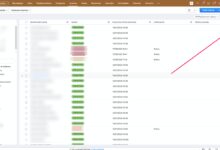
What Is Zoho Data Export and Why It Matters

Zoho Data Export refers to the process of extracting data from various Zoho applications—such as Zoho CRM, Zoho Books, Zoho Campaigns, and more—into downloadable formats like CSV, Excel, JSON, or PDF. This functionality is essential for businesses that rely on Zoho’s ecosystem for managing sales, finance, marketing, and customer support operations.
With over 90 million users worldwide, Zoho offers a comprehensive suite of cloud-based tools designed to streamline workflows. However, the true power lies not just in data collection, but in how easily you can retrieve and repurpose that data. Zoho Data Export enables organizations to maintain control over their information, ensuring compliance, enabling analytics, and supporting integration with third-party systems.
Understanding the Core Purpose of Zoho Data Export
The primary goal of Zoho Data Export is to provide users with full ownership and accessibility of their data. Unlike closed systems that lock data in proprietary formats, Zoho allows granular export options, empowering users to move, analyze, and store information freely.
- Facilitates data portability across platforms
- Supports regulatory compliance (e.g., GDPR, CCPA)
- Enables offline analysis using tools like Excel or Power BI
This flexibility makes Zoho Data Export a critical feature for companies undergoing digital transformation or auditing their data governance practices.
Key Applications Across Zoho Products
Zoho Data Export isn’t limited to a single app—it spans the entire Zoho One ecosystem. Each application offers tailored export capabilities based on its function:
- Zoho CRM: Export leads, contacts, deals, and sales forecasts for external reporting.
- Zoho Books: Extract invoices, expenses, and tax records for accounting audits.
- Zoho Campaigns: Download campaign performance metrics and subscriber lists.
- Zoho People: Retrieve employee records, attendance logs, and payroll summaries.
- Zoho Projects: Export task timelines, time logs, and project budgets.
Each export option is designed to preserve data integrity while allowing customization through filters and field selections. For detailed documentation, visit the official Zoho Export Guide.
“Data is the new oil, but only if it can be refined. Zoho Data Export ensures your data isn’t trapped in silos—it’s ready to fuel insights.”
How to Perform a Basic Zoho Data Export in CRM
Zoho CRM is one of the most widely used modules within the Zoho suite, making it a common starting point for data export tasks. Whether you’re preparing for a system migration or generating monthly reports, knowing how to execute a basic Zoho Data Export in CRM is fundamental.
The process is intuitive and accessible through the web interface, requiring no coding knowledge. However, understanding the nuances—such as record limits, filter accuracy, and file format choices—can significantly impact the quality of your output.
Step-by-Step Guide to Exporting CRM Records
Follow these steps to perform a standard Zoho Data Export from Zoho CRM:
- Log in to your Zoho CRM account.
- Navigate to the module you want to export (e.g., Leads, Contacts, Deals).
- Apply filters to narrow down the records (optional but recommended).
- Click the “More Actions” dropdown menu.
- Select “Export”.
- Choose the export format: CSV, Excel (XLSX), or PDF.
- Select which fields to include: All fields, selected fields, or custom views.
- Click “Export Now”.
- Download the file once the export completes.
Note: Exports may take several minutes for large datasets. Zoho sends an email notification when the file is ready for download.
Choosing the Right Export Format
The choice of file format affects how you’ll use the data post-export:
- CSV: Best for large datasets and integration with databases or BI tools. Lightweight and universally supported.
- Excel (XLSX): Ideal for sharing with stakeholders who prefer formatted spreadsheets with multiple sheets and formulas.
- PDF: Suitable for read-only reports, audits, or legal documentation where formatting must be preserved.
For advanced analytics, CSV is typically preferred due to its compatibility with Python, R, and SQL-based platforms. Learn more about format optimization at Zoho CRM Help Center.
Advanced Zoho Data Export Features and Automation
Beyond manual exports, Zoho offers robust automation and scheduling tools that elevate Zoho Data Export from a reactive task to a proactive strategy. These advanced features are particularly valuable for enterprises managing high-volume data flows across departments.
By leveraging workflows, scheduled exports, and API integrations, businesses can ensure consistent, error-free data delivery without constant human intervention.
Scheduling Recurring Zoho Data Exports
Zoho allows users to set up automated, recurring exports for specific modules and views. This is especially useful for teams that require weekly sales reports, monthly financial summaries, or daily lead updates.
To schedule an export:
- Go to Setup in Zoho CRM.
- Under Data Administration, select Scheduled Exports.
- Click Create Schedule.
- Define the module, view, and filters.
- Choose frequency: Daily, Weekly, Monthly.
- Select recipients who will receive the exported file via email.
- Set the file format and time of execution.
- Save the schedule.
This automation reduces manual labor and ensures stakeholders receive timely data, improving operational efficiency.
Using Zoho Flow for Automated Data Workflows
Zoho Flow is a powerful integration platform that connects Zoho apps with external services. It can trigger Zoho Data Export actions based on specific events.
Example use cases:
- Automatically export new leads to a Google Sheet every hour.
- Trigger a CRM data export when a deal stage changes to “Closed-Won.”
- Send exported invoice data to Dropbox or AWS S3 for archival.
By combining Zoho Flow with Zoho Data Export, businesses create end-to-end data pipelines that enhance visibility and reduce redundancy.
“Automation turns data export from a chore into a strategic asset.”
Leveraging the Zoho API for Custom Data Exports
For developers and tech-savvy teams, the Zoho API opens the door to fully customized Zoho Data Export solutions. This approach is ideal when standard export tools don’t meet specific business requirements—such as exporting nested data, handling real-time syncs, or integrating with legacy systems.
The Zoho API suite includes RESTful endpoints for nearly all Zoho applications, allowing programmatic access to records, metadata, and export functions.
Getting Started with Zoho API Integration
To begin using the API for Zoho Data Export:
- Register your client application in the Zoho API Console.
- Obtain OAuth 2.0 credentials (Client ID and Client Secret).
- Generate an access token for authentication.
- Identify the correct API endpoint for your module (e.g.,
https://www.zohoapis.com/crm/v6/Leads). - Use HTTP GET requests with query parameters to filter and retrieve records.
- Parse the JSON response and convert it to your desired format (CSV, XML, etc.).
For example, to export all leads created in the last 7 days:
GET https://www.zohoapis.com/crm/v6/Leads?created_time={last_week}
Authorization: Zoho-oauthtoken [your_token]
This method provides granular control over data retrieval and supports pagination for large datasets.
Best Practices for Secure and Efficient API Exports
When using APIs for Zoho Data Export, follow these best practices to ensure security and performance:
- Use OAuth 2.0: Never hardcode credentials; always use secure token-based authentication.
- Implement Rate Limiting: Zoho APIs have usage limits (e.g., 100 calls per 20 seconds). Design your scripts to avoid throttling.
- Cache Responses: Store frequently accessed data locally to reduce API calls.
- Log and Monitor: Track export jobs for errors and audit trails.
- Encrypt Data in Transit: Use HTTPS and encrypt exported files stored externally.
Refer to the Zoho CRM Developer Documentation for comprehensive API references and code samples.
Data Security and Compliance in Zoho Data Export
While exporting data offers immense benefits, it also introduces risks related to privacy, unauthorized access, and regulatory non-compliance. Therefore, understanding how Zoho safeguards data during the Zoho Data Export process is crucial for maintaining trust and legal adherence.
Zoho is committed to global data protection standards and provides built-in controls to secure exported information.
Role-Based Access Control (RBAC) for Exports
Zoho enforces strict access policies through Role-Based Access Control (RBAC). Administrators can define which users or roles are permitted to perform Zoho Data Export actions.
For instance:
- Sales managers may export their team’s contact lists.
- Finance staff can export invoices but not customer credit card details.
- Guest users may have view-only access with no export rights.
This ensures that sensitive data isn’t exposed to unauthorized personnel. Admins can configure these settings under Setup > Users & Control > Profiles.
GDPR, CCPA, and Data Residency Compliance
Zoho complies with major data protection regulations, including:
- GDPR (General Data Protection Regulation): Applies to EU citizens’ data. Zoho allows users to export personal data upon request, fulfilling the “Right to Access” clause.
- CCPA (California Consumer Privacy Act): Grants California residents the right to request data disclosure. Zoho Data Export supports this through individual record exports.
- DPDPA (India’s Digital Personal Data Protection Act): Zoho has updated its infrastructure to align with emerging regional laws.
Additionally, Zoho operates data centers in North America, Europe, India, and Australia, allowing organizations to choose data residency zones—critical for compliance with local laws.
“Compliance isn’t optional—it’s embedded in every Zoho Data Export workflow.”
Common Challenges and Troubleshooting in Zoho Data Export
Despite its robust design, users occasionally encounter issues during the Zoho Data Export process. Being aware of common pitfalls and their solutions can save time and prevent data loss.
Handling Large Data Volumes and Timeouts
Exporting more than 20,000 records at once can lead to timeouts or incomplete files. Zoho imposes soft limits to maintain system performance.
Solutions:
- Break exports into smaller batches using date filters (e.g., export by month).
- Use the API with pagination to retrieve records in chunks.
- Schedule off-peak exports (e.g., overnight) to avoid server congestion.
For enterprise plans, Zoho offers bulk export tools capable of handling millions of records efficiently.
Resolving Formatting and Encoding Issues
Users often report garbled text, missing accents, or incorrect date formats in exported files—typically due to encoding mismatches.
To fix this:
- Ensure CSV files are saved with UTF-8 encoding.
- Open files in Excel using the “Import Text Wizard” and specify UTF-8.
- Avoid special characters in field names when possible.
- Test exports with small datasets before scaling up.
For multilingual data (e.g., French, Arabic, Japanese), always verify character encoding settings in both Zoho and the destination application.
Integrating Zoho Data Export with Third-Party Tools
The real value of Zoho Data Export emerges when data is integrated with external platforms for deeper analysis, visualization, or operational use. Zoho’s ecosystem supports seamless connectivity with popular business intelligence (BI), storage, and automation tools.
Connecting Exports to Google Sheets and Microsoft Excel
Google Sheets and Excel are among the most common destinations for Zoho Data Export outputs. You can automate this flow using:
- Zoho Flow: Automatically push exported CRM data to a Google Sheet row-by-row.
- API Scripts: Use Google Apps Script to fetch Zoho data via API and populate spreadsheets.
- Manual Upload: Download CSV and import into Excel or Sheets for pivot tables and dashboards.
This integration is ideal for marketing teams tracking campaign ROI or sales leaders monitoring KPIs.
Syncing with BI Tools Like Power BI and Tableau
For advanced analytics, connect Zoho Data Export outputs to BI platforms:
- Power BI: Use the Zoho CRM connector or import CSV files directly. Build interactive dashboards for sales forecasting.
- Tableau: Connect via ODBC driver or upload JSON exports for visual trend analysis.
- Looker Studio: Combine Zoho data with Google Ads or social media metrics for unified reporting.
These tools transform raw exports into strategic insights, helping businesses identify trends, forecast revenue, and optimize customer journeys.
“Data in isolation tells half the story. Integration completes it.”
Best Practices for Efficient and Secure Zoho Data Export
To maximize the effectiveness of your Zoho Data Export strategy, follow these industry-proven best practices:
- Define Clear Export Objectives: Know why you’re exporting—backup, analysis, migration—and tailor the process accordingly.
- Use Filters Wisely: Always apply relevant filters to reduce noise and improve data relevance.
- Document Export Procedures: Maintain internal SOPs for consistency, especially for recurring reports.
- Verify Data Integrity: Cross-check exported files against source records to ensure completeness.
- Secure Storage: Store exported files in encrypted drives or cloud vaults with access controls.
- Train Your Team: Ensure all users understand export permissions and compliance requirements.
Regularly audit your export logs and update access policies to reflect organizational changes.
How often should you perform Zoho Data Export?
It depends on your use case. For compliance and backup, monthly exports are recommended. For analytics, weekly or daily exports may be necessary. Use scheduled exports to maintain consistency.
Can I export deleted records in Zoho?
Yes, but only within a limited recovery window (usually 30 days). Deleted records can be restored or exported from the “Recycle Bin” in Zoho CRM and other apps.
Is Zoho Data Export free?
Basic export features are included in all paid Zoho plans. However, bulk or API-based exports may require higher-tier subscriptions or additional credits, depending on the app.
What happens if an export fails?
Zoho notifies users via email if an export job fails. Common causes include network issues, invalid filters, or permission errors. Review the error message and retry after resolving the issue.
Can I export Zoho Mail data?
Yes. Zoho Mail allows users to export emails, contacts, and calendars in MBOX, PST, or CSV formats through the “Data Export” tool in the admin console.
Mastering Zoho Data Export is not just about moving data—it’s about unlocking its strategic value. From simple CSV downloads to automated API pipelines, the tools are powerful and accessible. By following best practices in security, compliance, and integration, businesses can turn their Zoho data into a competitive advantage. Whether you’re a small startup or a global enterprise, effective data export practices ensure you stay agile, informed, and in control.
Recommended for you 👇
Further Reading:
